How to transcribe a video to text without uploading it
A video transcript turns speech into searchable, editable text. It can become meeting notes, an article draft, a video description, research material, or the source for timed captions. The useful result is not merely a page of plausible words: it is a reviewed record that preserves names, numbers, meaning, and enough timing to find the original moment again.
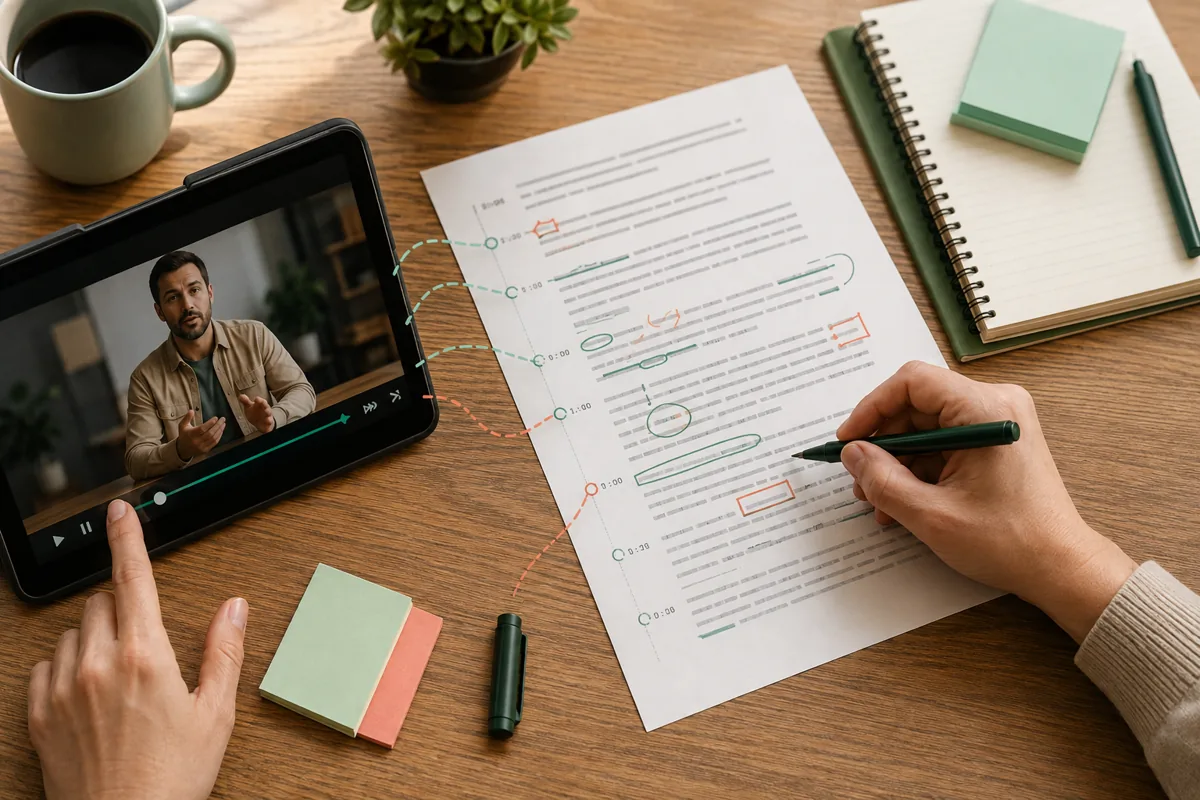
Decide whether you need text, captions, or both
A transcript and a caption file begin with the same speech but serve different jobs. A transcript is designed to read, quote, search, and summarize. A caption file is divided into timed cues that appear during playback. CaptionKite can create both in one pass, so decide how each will be used before editing.
Best for notes, search, quotations, summaries, and moving the words into a document editor.
A broadly accepted timed format for video editors and publishing platforms.
A web-oriented timed format that can carry cue settings and works well with browser video.
Do not delete timestamps too early. They are the fastest route back to the recording when a sentence sounds wrong or a quote needs context.
1. Prepare a source the browser can understand
Start with the original local video when possible. Play it from beginning to end or at least test the opening, middle, and closing. Speech recognition depends on the audio track, not the sharpness of the picture, so a giant 4K copy brings no accuracy advantage when its sound is identical to a smaller version.
- Choose the cleanest microphone track available.
- Remove long silent introductions and unused endings with the video trimmer.
- For a very large video, use the audio extractor and transcribe the smaller audio file.
- Note the spoken language before starting.
- Close other memory-heavy browser tabs for a long recording.
If the browser cannot preview the file, the container or codec may be unsupported even when the extension is familiar. The supported-formats guide explains the difference.
2. Generate the first transcript
- Open CaptionKite's caption tool and choose the local video or audio file.
- Wait for the file-ready state rather than clicking repeatedly while the browser reads it.
- Select the language actually spoken in the recording.
- Start caption generation and keep the tab open.
- Watch the status and live transcript for evidence that the job is progressing.
- When processing finishes, keep the result open for review before downloading.
The speech model runs in your browser. The first use may require the model files to be downloaded and cached, while the media itself remains on your device. Long recordings depend on processor speed, available memory, and browser support, so elapsed time is not a reliable measure of failure.
3. Correct the details that automatic speech recognition misses
Read while listening. Begin with details whose errors would travel into every later use: people's names, company and product names, dates, prices, percentages, measurements, web addresses, acronyms, and specialized vocabulary. A fluent sentence can still contain the wrong number or the wrong person.
Then correct punctuation and sentence boundaries. Spoken language does not arrive with commas, paragraphs, or headings, and automatic punctuation can split a thought at the wrong place. Keep false starts when they matter to a verbatim record; remove them cautiously when the transcript is for reading. Do not silently improve a quotation until it says something the speaker did not say.
The most dangerous error is not obvious nonsense. It is a familiar word substituted for an unfamiliar name, delivered with perfect spelling and punctuation.
4. Add speakers and structure
A raw transcript becomes useful when readers can navigate it. Add speaker labels only when you can verify the voices. In a simple interview, role labels such as Interviewer and Guest can be clearer and safer than guessing names. In a lecture, short headings at topic changes may be enough.
Start a new paragraph when the speaker changes or the subject turns. Preserve a consistent convention for interruptions, uncertain words, and meaningful sound. Use square brackets for useful non-speech information such as [door closes] or [laughter], but do not narrate every incidental noise.
CaptionKite produces timed speech blocks; it does not promise certified speaker diarization. For a legal deposition, medical record, regulatory proceeding, or other high-stakes use, follow the required professional and review process rather than treating automatic output as authoritative.
5. Export the format that matches the next step
| Next task | Download | Why |
|---|---|---|
| Read, quote, search, or summarize | TXT | Plain text is easy to edit and move between writing tools |
| Upload captions to a platform or editor | SRT | Simple timing and broad compatibility |
| Publish with an HTML video player | VTT | Designed for timed text on the web |
| Keep a review master | TXT plus SRT | Readable copy plus timing for verification |
Name files so their status is obvious: interview-draft.txt, interview-reviewed.srt, and interview-published.srt are safer than three files all called captions.srt. Keep the source recording until the published or delivered version has been checked.
Handle a long video without losing your place
A long recording increases processing time, memory pressure, and review effort. Before transcribing, remove material that is definitely irrelevant. For a multi-hour session, split at natural boundaries such as agenda items, lessons, interviews, or breaks rather than at arbitrary file sizes.
Keep a simple manifest with the filename, source time range, language, and review status for each part. When combining text, retain headings that show where sections meet. Overlapping a few seconds at each cut can prevent a sentence from being lost, but remove the duplicate after checking.
Do not start several long jobs in different tabs. They compete for memory and can make every job less stable. Connect a laptop to power, prevent sleep, and save each completed part before beginning the next.
Recognize whether the problem is the model or the recording
Listen at every place where the transcript becomes unreliable. If the speech is clear to you but a name or technical term is wrong, the recognition model lacks context and the practical fix is human correction. If you cannot understand the word because of echo, clipping, music, or overlapping speakers, another pass over the same audio is unlikely to invent the missing information.
- Confirm the selected language.
- Prefer a direct microphone track over sound played through speakers.
- Reduce avoidable background music before transcription when you control the edit.
- Check quiet speakers and remote callers separately.
- Compare important quotations against the original recording.
See transcription troubleshooting for model-download, memory, and decoding problems.
Turn one reviewed transcript into several useful outputs
Once the words are accurate, the transcript can support more than captions. Create a short synopsis, a detailed outline, chapter markers, show notes, searchable research notes, or a list of decisions and actions. Make these from the reviewed text, not from the first automatic draft, because mistakes in names and numbers are otherwise repeated at scale.
A summary is a new interpretation, not a replacement for the transcript. Keep the reviewed source beside it and verify every important claim. The video-summary guide shows how to choose an audience, split a long conversation at topic changes, and check whether a summary invented agreement or lost a conclusion.
Know when the recording or transcript leaves your device
Selecting a local file in CaptionKite keeps media processing in the browser. The website and model still need network access to load, but CaptionKite does not receive the chosen local recording. A direct media URL is different: the browser requests that address from its host, which can log the request or require permission.
The privacy boundary changes again when you paste the transcript into an online writing or summarization service, email it, or save it to synchronized storage. Plain text is small, searchable, and easy to forward, which can make it more exposed than the original video. Remove unnecessary personal data, use approved storage, and apply the retention rules that fit the recording.
Read how local browser transcription works for the full boundary.
A final transcript quality check
- Confirm the language and full recording duration.
- Check the first and last spoken sentence.
- Search for every important name, number, date, and acronym.
- Verify speaker labels against the voices.
- Read uncertain passages while listening at a slower speed.
- Make sure paragraphs and headings do not change the speaker's meaning.
- Open the downloaded TXT, SRT, or VTT file rather than trusting the download notification.
- Keep a clearly named reviewed master.
- Protect and eventually remove temporary copies according to the source's sensitivity.
If the transcript will be published as captions, preview the timed file with the finished video and continue with the complete SRT workflow.