How to create subtitles for social media videos
Social video captions have two jobs: preserve the speaker's meaning and remain readable on a small, busy screen. A transcript is only the starting point. Good social subtitles also need deliberate line breaks, safe placement, useful timing, and a publishing method that matches the destination.
Why social subtitles need a separate workflow
Many people encounter social videos with the sound low, unavailable, or competing with their surroundings. Captions let them understand the subject before deciding whether to listen. They also help viewers who are Deaf or hard of hearing, people learning the spoken language, and anyone trying to follow an unfamiliar name or technical term.
The difficulty is space. A vertical phone video may already contain a face, product, demonstrations, buttons, and text added by the platform. Long television-style captions can cover the action. Decorative animated words can become tiring or change the speaker's emphasis. The goal is not to display every word in the largest possible type. It is to create a stable reading path that supports the video.
1. Create and correct the transcript
Open CaptionKite, choose the finished video, select the spoken language, and generate captions. Review the result while listening to the recording. Correct names, places, prices, measurements, dates, acronyms, and branded terms before adjusting the visual presentation. Those details are easy for speech recognition to mishear and especially noticeable in a short post.
Remove false starts only when doing so does not alter tone or meaning. Keep meaningful repetition, pauses, and reactions when they are part of the message. Add useful sound descriptions when the sound communicates something the picture does not, such as [alarm sounds] or [audience laughs]. A clean social caption should feel faithful, not rewritten by an editor.
2. Edit for a phone-sized screen
Break text at natural grammatical boundaries. Keep an article with its noun, a preposition with the phrase that follows, and a person's full name together when possible. Avoid leaving one short word on a line by itself. Two balanced lines are normally easier to scan than one very long line or three cramped lines.
- Use ordinary capitalization and punctuation rather than all capitals.
- Keep each caption focused on one short phrase or sentence.
- Allow enough time to read; do not chase rapid speech with flashes of text.
- Identify a speaker only when the picture does not make the speaker clear.
- Check spelling in the actual caption file, not only in a separate transcript.
3. Protect the safe area
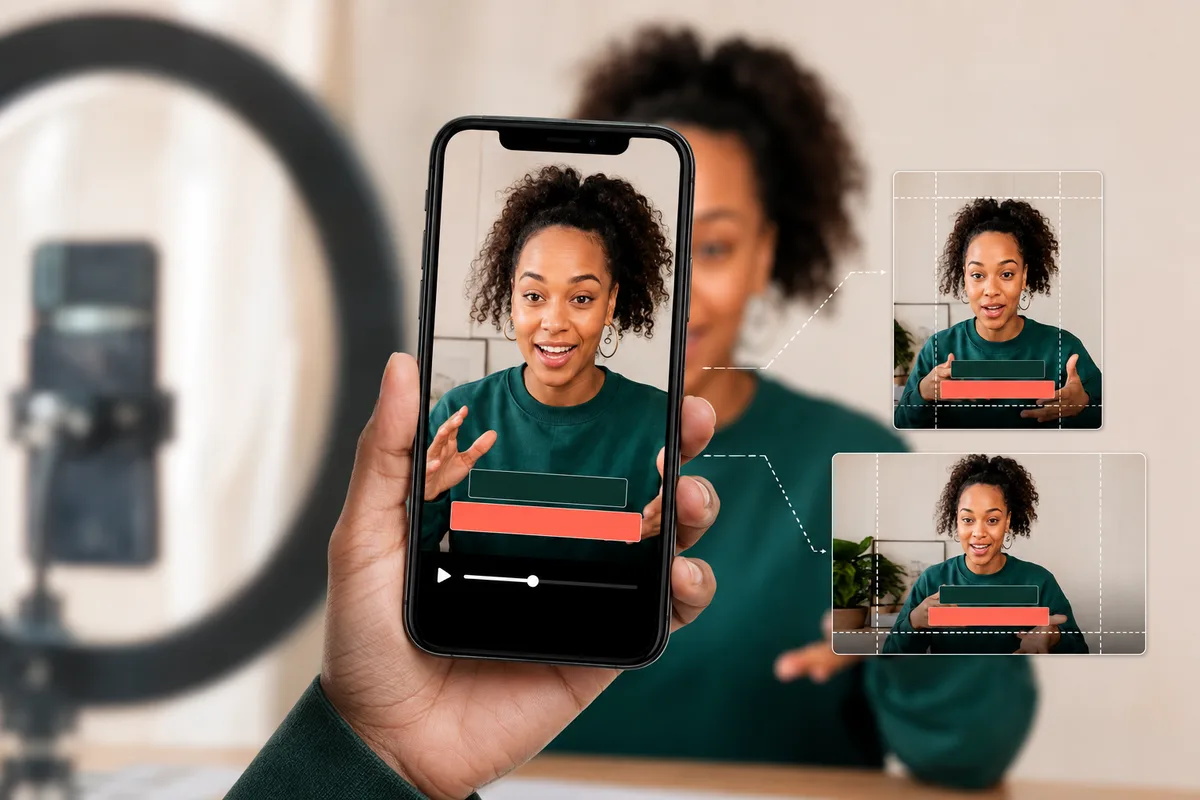
Preview the final post in the same aspect ratio in which it will appear. Platform controls, account names, descriptions, and action buttons often occupy the top, bottom, or right edge. Interfaces change, so treat those edges as moving hazards rather than relying on one permanent pixel template. Keep essential text comfortably inside the frame and away from a speaker's mouth, a product label, or the action being demonstrated.
Use strong contrast. A consistent background box, shadow, or outline is more reliable than changing text colors from shot to shot. Test on a real phone at normal brightness. If viewers need to pause to decode the style, simplify it.
4. Choose selectable or burned-in captions
Upload SRT or VTT when the destination offers a caption-track control. Viewers can turn it on or off, accessibility tools can recognize it, and corrections may not require a new video export.
Render the words into the picture when a destination or posting workflow does not accept a separate file. The text always appears, but it cannot be hidden or restyled by the viewer.
A burned-in version can support silent browsing while a separate, accurate caption track provides a better accessibility option where the platform accepts it.
CaptionKite creates SRT and VTT files; it does not burn styling into the video. Use the exported file in a video editor when you need permanent text.
5. Adapt the master without starting over
Create one carefully reviewed master caption file, then make a copy for each destination. A landscape video, square feed post, and vertical clip may use the same words and timings but need different line breaks or placement. Keep filenames clear, such as launch-master.srt and launch-vertical.srt, so a quick layout edit never replaces the approved transcript.
Interface labels and accepted upload options can change. Before publishing, check the destination's current caption or accessibility area and preview the processed post. Never assume the presence of visible text means the separate caption track was attached correctly.
A pre-publish subtitle checklist
- Play the post once with sound and once muted.
- Confirm names, numbers, calls to action, and URLs are exact.
- Check the first and final caption rather than testing only the middle.
- Look for text hidden by controls in the published aspect ratio.
- Confirm captions remain readable over every background.
- Verify that selectable captions are labeled with the correct language.
- Keep the reviewed SRT master with the project files.
For the mechanics of combining captions and video, continue with how to add captions to an MP4.
Write the rules down once
If you caption regularly, the decisions that slow you down are the same ones every time. Do you keep “um”? Do you write numbers as digits? Does swearing get asterisks? Deciding once and writing it down turns a series of small judgement calls into a routine.
A useful house style fits on one page: line length, how speakers are labelled, whether non-speech sound is described, how brand names and product names are capitalised, and what happens to filler. Nothing exotic — just settled.
The payoff is consistency across a feed, which viewers notice even when they could not tell you why. It also makes handing the job to someone else possible, because the answer to “how do you normally do this?” is a document rather than a conversation.
Let the numbers tell you what to fix
Captions are one of the few things on social where you get feedback that means something. Watch time on a captioned post against an uncaptioned one is a real comparison, and it is usually decisive enough to end the argument about whether they are worth the effort.
Look for where people stop watching. A drop in the first two seconds often means the opening caption arrived too late to catch someone scrolling. A drop in the middle can mean text sitting over something they wanted to see.
Comments are cruder but faster. If people are asking what a word was, the caption is wrong or unreadable there — and that is worth more than any general advice, because it is about your video and your audience.