How to make a GIF from a video
A useful GIF is short, focused, and small enough to share. CaptionKite samples frames from a section of your video and builds the animated image locally, with controls for width and frame rate.
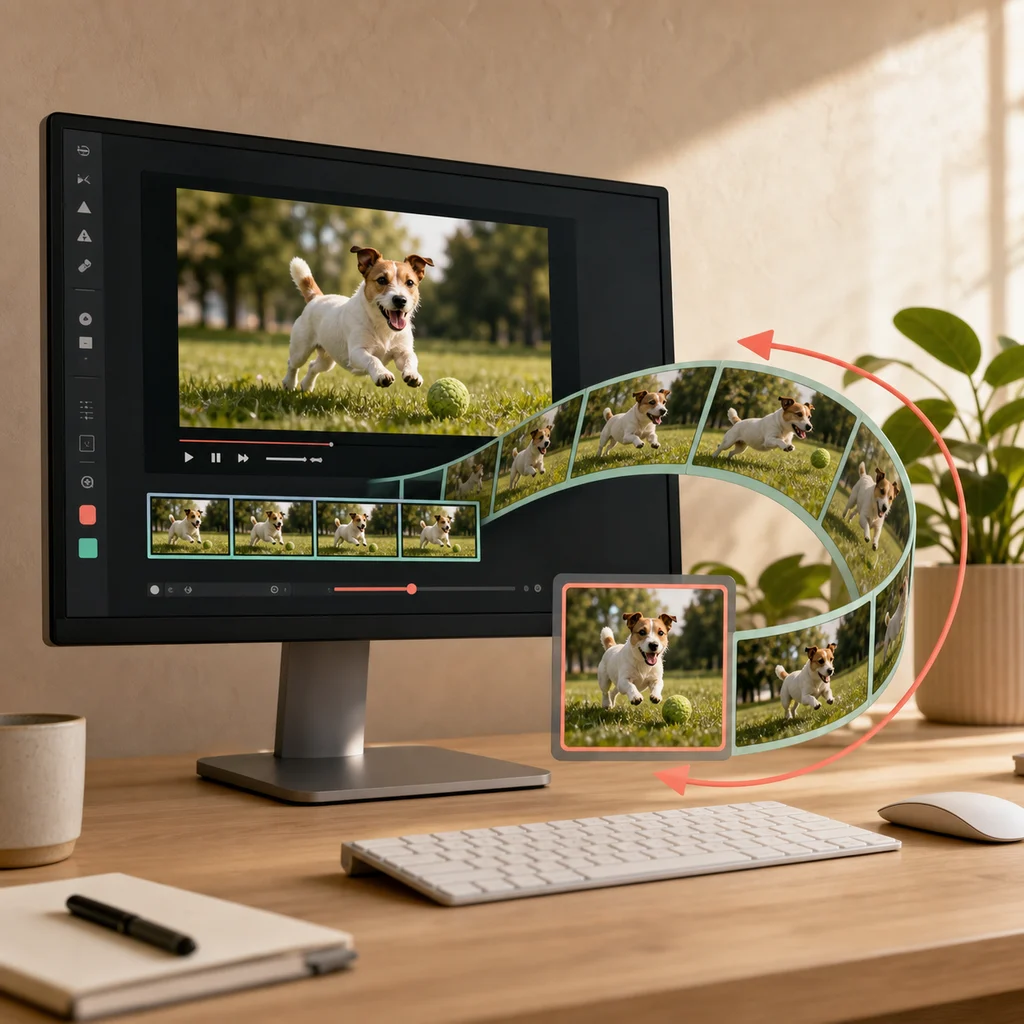
Make a GIF in four steps
The video frames are read and encoded in your browser. The source video is not uploaded to CaptionKite.
1. Pick a short, repeatable moment
Open the video-to-GIF tool, choose a file, and move the trim handles around the action you want. CaptionKite accepts selections up to 30 seconds, but most shareable GIFs work better at roughly two to eight seconds.
- Begin just before the main action.
- End at a frame that flows naturally back to the beginning when possible.
- Avoid long pauses where almost nothing changes.
2. Balance width, frame rate, and file size
| Setting | Use it for | Tradeoff |
|---|---|---|
| 240 px | Small reactions and lightweight sharing | Smallest image |
| 360 px | A practical default for most clips | Balanced detail and size |
| 480 px | Details that need more room | Larger output |
| 8 fps | Slower movement | Fewer frames |
| 10 fps | Most everyday motion | Balanced smoothness |
| 15 fps | Fast action | More processing and a larger file |
The displayed estimate is approximate. Busy motion, noise, gradients, and rapidly changing colors often produce larger files than simple scenes.
3. Know what the GIF format leaves out
GIF supports animation but not audio. It also uses a limited color palette, so photographs, shadows, and smooth gradients can show banding compared with the original video. For long, high-quality playback, a short MP4 or WebM clip is usually smaller and looks better.
Use it for a brief reaction, demonstration, before-and-after moment, or repeating visual that needs to play without a video player.
4. Make an oversized GIF smaller
- Shorten the selected range first.
- Reduce width from 480 px to 360 px or 240 px.
- Lower the frame rate from 15 fps to 10 fps or 8 fps.
- Choose a section with less camera movement when possible.
Duration usually makes the greatest practical difference because every additional second adds another group of frames.
5. Review the finished animation
Open the downloaded GIF and watch several repetitions. Check that the first and last frames feel intentional, the subject remains readable at the selected width, and the file is small enough for its destination.
A loop should say one thing
The GIFs that work are built around a single action with a clear beginning and end. The ones that do not are usually a few seconds of a longer video with no particular shape, which reads as a clip that got cut off rather than something made on purpose.
Two to eight seconds is the useful range. Under two and there is no time to register what happened; past eight and the file is large enough to be annoying without being long enough to be a video.
Watch it loop four or five times before you decide it is done. Problems that are invisible on the first pass — a jump at the seam, a hand entering frame from nowhere — become the only thing you can see by the third.
What GIF is genuinely bad at
The format is from 1987 and it shows. Knowing where it struggles saves you fighting it.
Colour. A GIF holds 256 colours for the whole image. Skin tones, sunsets, and anything with a smooth gradient will band into visible stripes, because there are not enough shades to describe the transition. Flat colours, graphics, and text survive far better than photography of a face.
Dark scenes. Shadow detail is exactly where those missing shades hurt most, so night footage tends to turn into blocks of near-black.
Fast motion. Every frame is stored more or less whole, so movement costs size directly. A locked-off shot of someone reacting is cheap; a pan across a busy street is expensive and looks worse.
If your footage is all three at once, a short video will look better and weigh less. That is not a failure of the tool.
Getting the size down, in the order that works
Three settings affect the file, and they are not equally powerful. Change them in this order.
Width first. It shrinks every frame in both directions at once, so halving it cuts the file to roughly a quarter. Nothing else comes close.
Then frame rate. Ten frames a second reads as smooth for most footage. Fifteen is worth paying for only when something moves quickly.
Then length. Cost rises in a straight line with duration, so trimming a second saves a predictable amount — useful for the last bit of tuning rather than the first.
The estimate updates as you change each one, so you can see the effect before encoding. It is approximate: real output varies with how much motion there is, which is why a still scene can come in well under and a busy one over.
Where it is going changes what you should make
Before you settle on settings, find out what the destination accepts. Messaging apps and forums often cap attachments at a few megabytes and will silently re-compress anything larger, which undoes the work you just did.
Some platforms convert uploaded GIFs to video automatically. That is usually a better outcome than it sounds — smaller file, better colour — but it means the loop behaviour and the first frame matter more than the format you started with.
One thing worth considering: animation that repeats forever can be genuinely difficult for people who are sensitive to motion, and there is no way to pause a GIF. If the movement is rapid or high-contrast, a short video with a play button is the kinder choice, and on most platforms it will look better too.